With our flexible calendar view, you can easily track all your reservations, check availability, and switch between different display options by date or property.
Quickly Edit your costumers Booking Information
When a booking is confirmed, its duration is automatically added to your calendar. If you’re using an iCal link to sync calendars across multiple booking platforms. InnovGuide will clearly display the source of each reservation using platform specific colors or logos.
By selecting a reservation, you can quickly access to key guest details, such as the booking ID, reservation information, and the guest’s personal details.
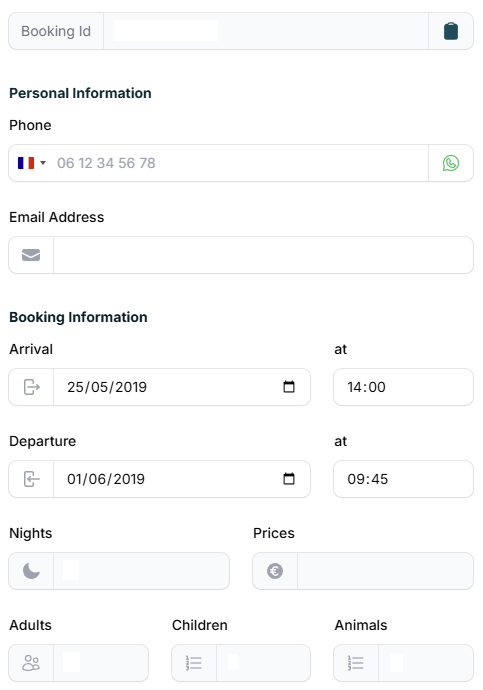
If needed, you can adjust the booking duration and the guest personal information directly from this tab.
Want to learn how to sync calendars from multiple platforms? Check out this article: Sync Your Bookings with iCal Calendar
Filter Your Reservations
Use filters on your calendar to help you navigate through all your bookings more easily.
To filter your calendar by property, simply click on the property name to display all reservations for the month.
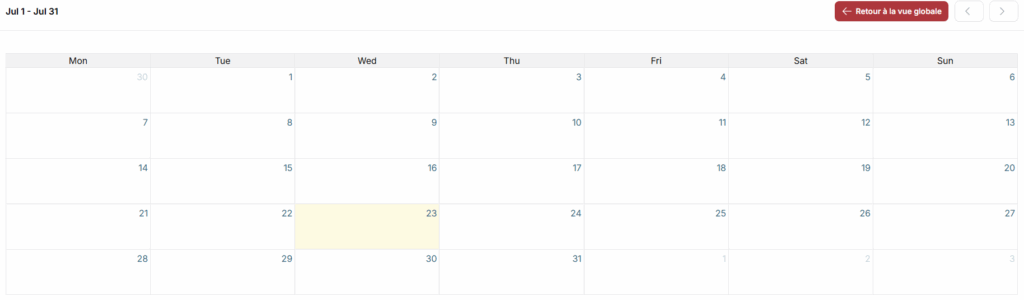
You can then change month with the arrow button, if you want to return to the previous view, you can do it by clicking the red button besides the arrow button.
Choose a specific date by clicking this button, you’ll be able to check if there’s a reservation scheduled for that day.
Whether you’re handling multiple properties or just want a better overview of your bookings, InnovGuide’s calendar gives you the control and flexibility you need.