

Manually adding a property to InnovGuide takes just a few minutes and gives you full control over the details you want to display in your guide. Follow these simple steps to get started:
First of all, go to the “Properties” section and click on “+ Add Property”.

Step 1: Fill in the general informations
This first step allows you to define the identity and location of your property.
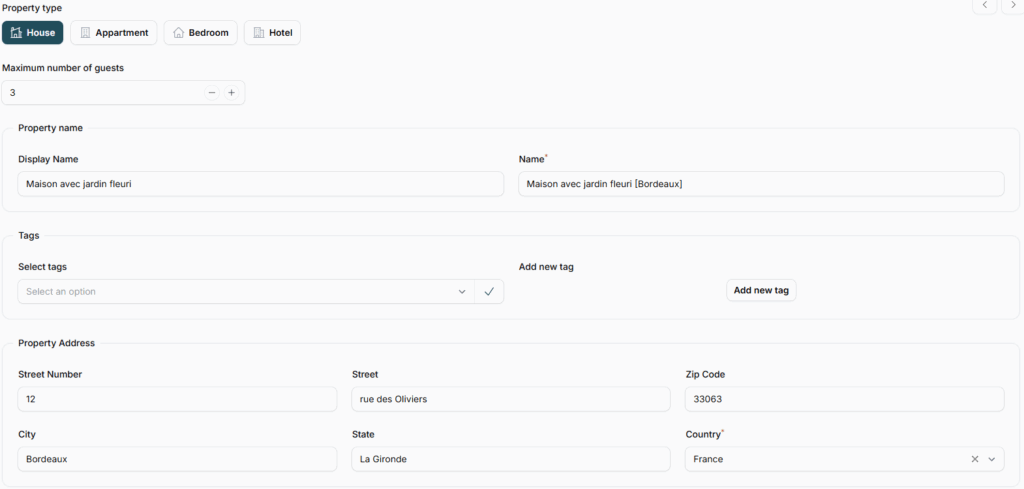
Property Type
Start by selecting the appropriate type of property:
- House, Apartment, Bedroom or Hotel
This helps categorize your listing correctly.
Maximum number of guests
You can set a maximum of 10 guests for your property.
Property Name
You will need to define two names for your property:
- Display Name: This is how your property will appear in the guest-facing guide. You can personalize it to reflect the style or mood of the place (example: “Cosy Rooftop Loft”).
- Name: Used for your own management inside InnovGuide (it won’t be visible to guests).
Property Address
Fill in all fields to correctly locate your property:
- Street Number & Street
- ZIP Code
- City & State
- Country
Precise Location (Optional but Recommended)
You can also provide additional location details to enhance the GPS accuracy of your property:
- Property Number, Floor, Building Number: Useful for apartments, hotels.
- Latitude / Longitude: If needed, you can manually input the exact coordinates.
- Map Interface: Simply click on the map to precisely place your property. This ensures guests receive accurate directions and navigation.
Make sure the address is accurate, it will help ensure proper syncing with external platforms and navigation tools.
Step 2: Define The Property Attributes
This step helps guests understand what your place offers and what to expect.
Bedrooms, Beds & Bathrooms
You can select up to 6 bedrooms, beds, and bathrooms for your property.
Space Overview & House Manual
In the Space Overview, you can introduce your property in a few words, highlighting its charm, layout, and standout features. This short description helps guests quickly understand what makes your place special.
For practical details, the House Manual lets you share everything your guests need to know during their stay such as the property’s time zone, local currency, surface area, and any helpful tips about the space or neighborhood.
Make your property stand out with a compelling, multilingual description.
Our smart translation tools let you write in multiple languages effortlessly, while InnovGuide AI polishes your text to make it more attractive and guest-friendly.
Step 3: Set the House Rules
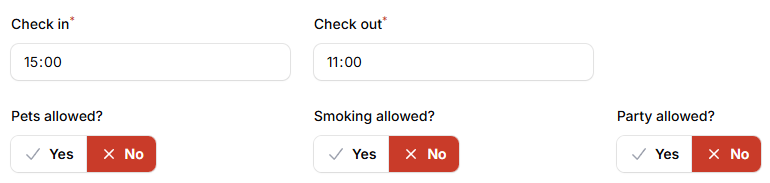
Make your expectations clear by adding your house rules:
- Check-in and check-out times
- Smoking policy
- Pet policy
- Party Policy
You can also add custom rules if you’d like to set specific guidelines for your guests.
Step 4: Add Photos of Your Property
You can add photos directly from your computer.
- Go to Properties > Choose a property > Pictures
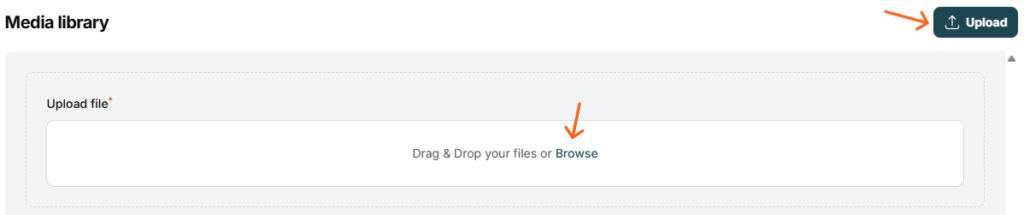
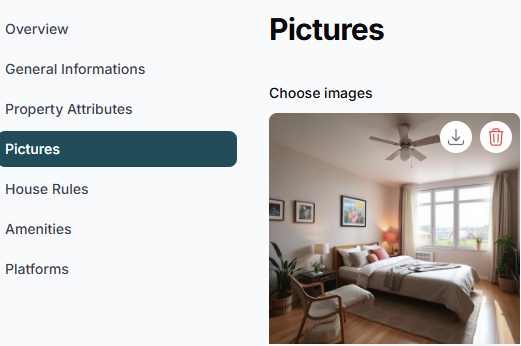
Showcase your space to attract more guests. They’ll also be featured in your digital guide to give guests a great first impression.
- Go to your Guide > Arrival > Digital Visit
You can access your guide by scanning the property’s QR code or by using the guide’s direct link.
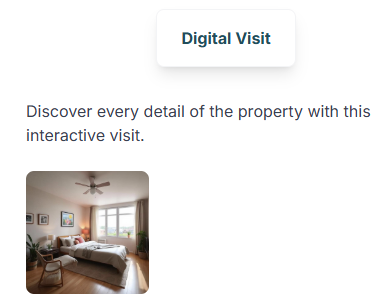
Photos are a key part of the guest experience. Make sure they reflect your property accurately and clearly.
Once this step is complete, you’ll be able to create your property.
Don’t worry, if you need to make changes later, just follow the next step.
Step 5: Edit Property Information
Want to make changes later?
InnovGuide allows you to update all information at any time.
Simply select a property and navigate through the menu to make changes.
Use the Overview tab as a dashboard to spot missing or incomplete information.
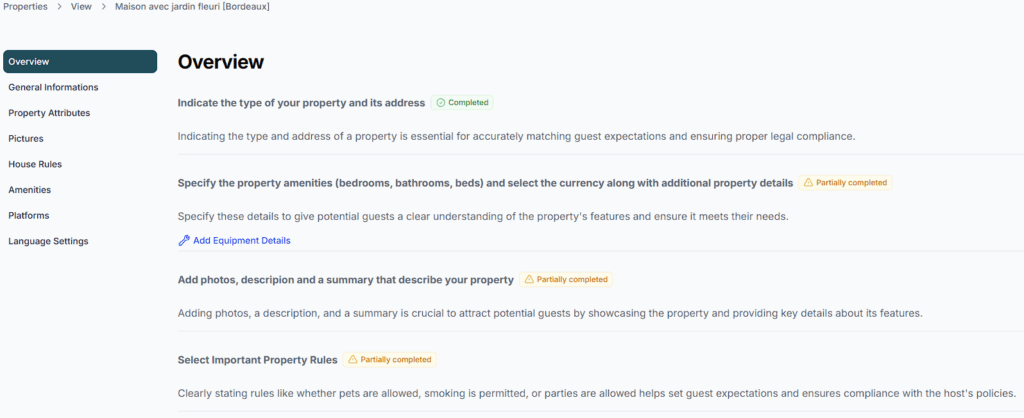
By the end of this guide, you should have a new property in your property list.
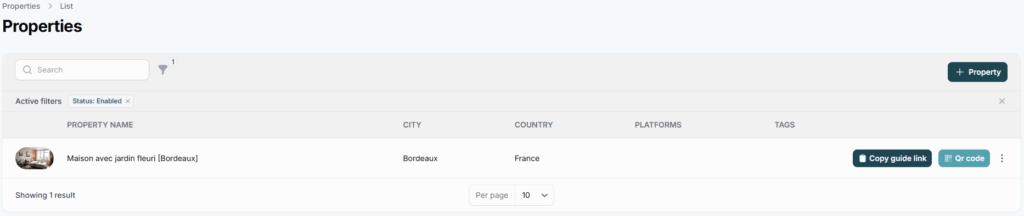
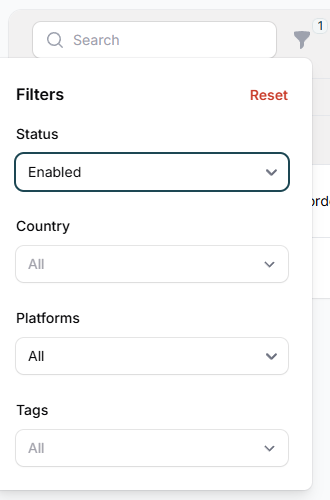
If you have multiple properties, you can filter them by:
- Status (Enabled or Disabled)
- Country
- Platforms
- Tags
- Text
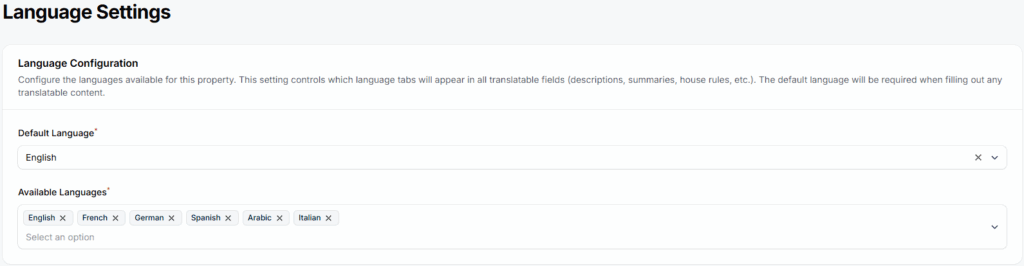
Set up your language settings
Your guests may come from all over the world, so offering information in their native language can greatly enhance their experience. That’s why we’ve made it easy for you to translate your property listings or guides into at least 13 different languages.
Add amenities to display your property
A house is only as welcoming as the amenities it offers. Highlighting your property’s equipment is essential to show potential guests the comfort and value they can expect.
Learn how to add and manage your amenities in our detailed guide: How to Manage Your Property’s Amenities or Equipment
Sync Your Property Calendar Across All Platforms
To effortlessly manage your availability and avoid double bookings, make sure to synchronize your calendar with all connected platforms.
For a step-by-step guide, check out this article: Sync Your Bookings with iCal Calendar
You’re now all set to start creating your digital guide and welcoming your first guests!